 NM OS Manager
Cannot be bypassed
The prompt stays in front of every app, including kiosk mode, and comes back after a restart until the user has made a choice.
For Zebra Android fleets managed by MDM
NM OS Manager runs on each device, picks up the OS update file it finds and makes sure it is installed. You decide how firm it is with the user. One thing does not change: the update gets installed. Works with any MDM that installs enterprise apps.
Live demo. Tap the buttons on the device or jump to a step.
Upgrading a fleet of Zebra devices should be routine. In practice it is hard to plan an upgrade for a set time. Devices are offline, switched off or have not been online for months. Batteries are too low and storage is full. Over-the-air campaigns stall, file transfers break, and the script that was supposed to start the upgrade never runs. Every round leaves devices behind.
NM OS Manager removes the guesswork. It runs on the device itself, picks up the OS files it sees and makes sure they are installed. It waits for battery and for the right time, survives reboots and power-offs, and checks the package before it touches the device. How firm it is with the user is up to you. The OS will be installed.
How it works
Deliver the Zebra OS package with your MDM. NM OS Manager checks that the package fits the device before anything happens.
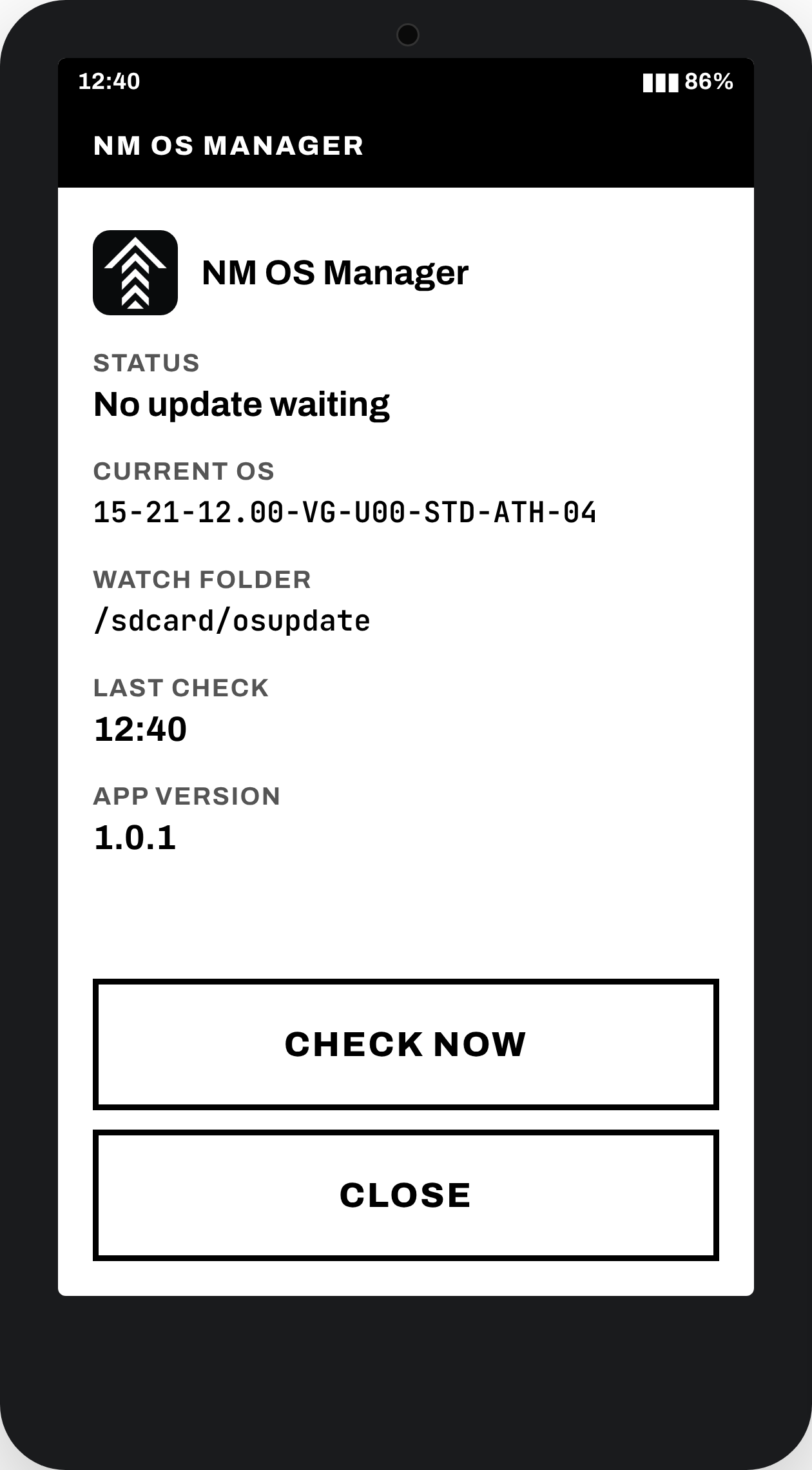
The user is asked to install the update. The prompt cannot be closed or skipped. The user chooses Install now or Postpone.
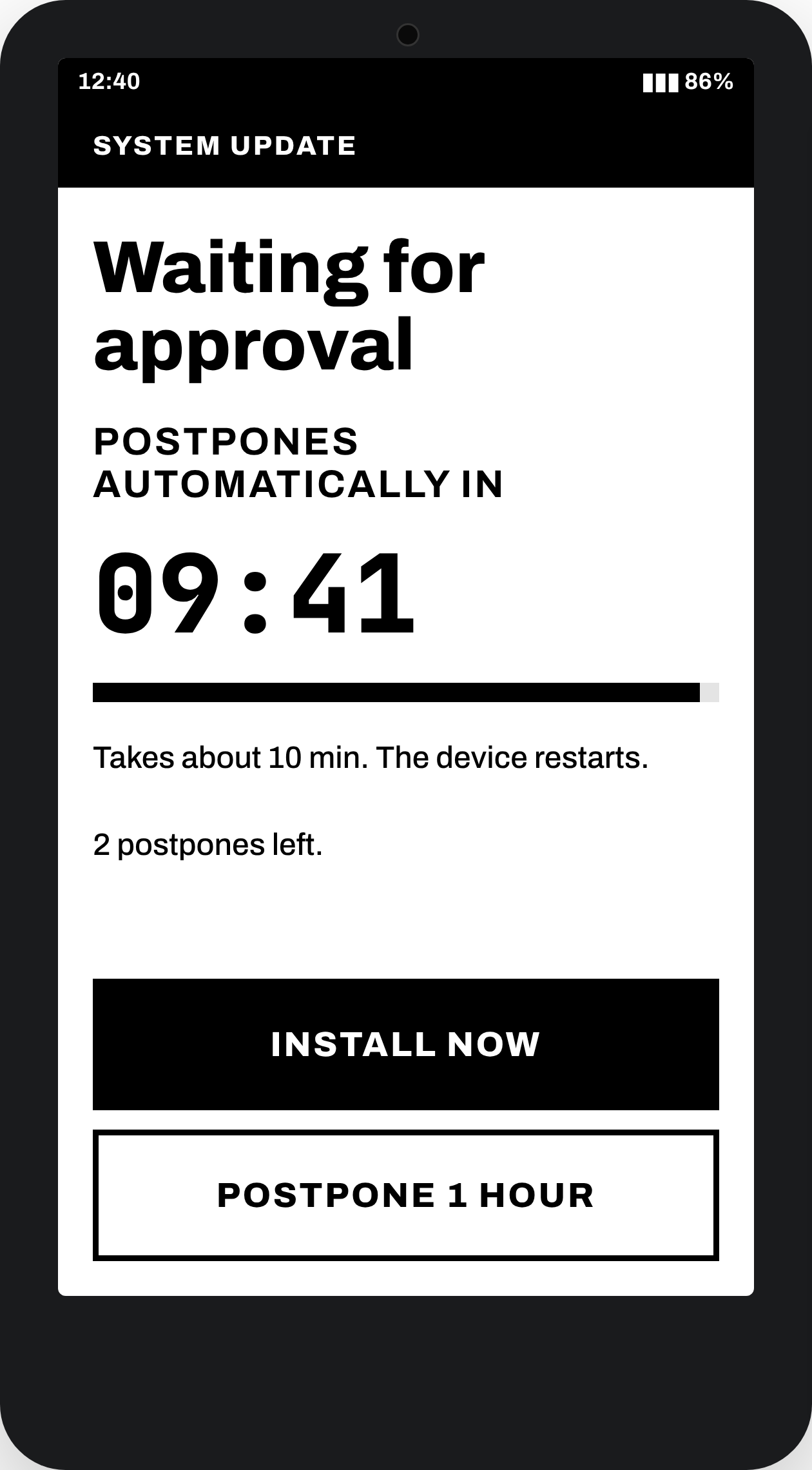
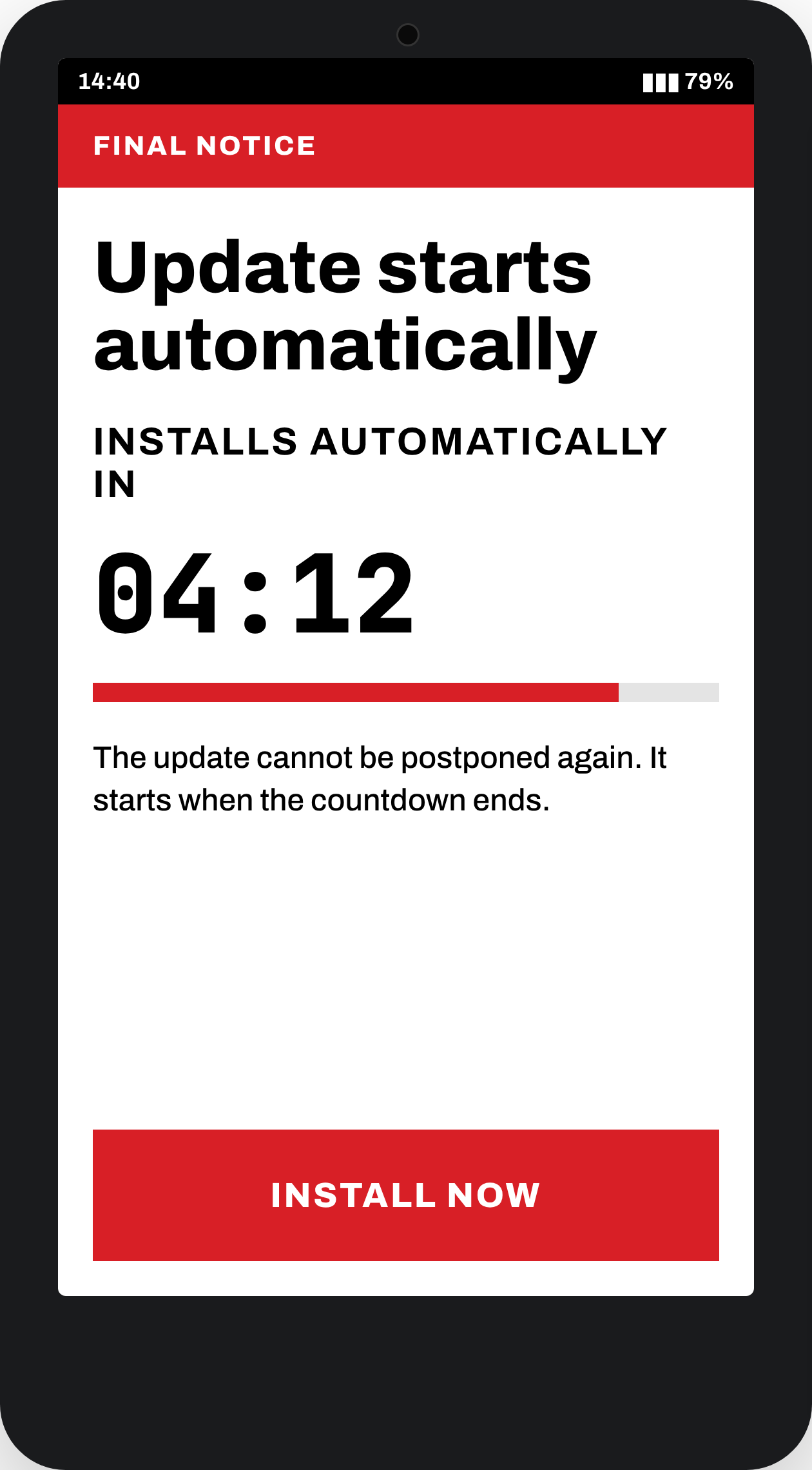
When the allowed postponements are used up, a final countdown starts and the update installs by itself. Restarts and power-offs do not stop it.
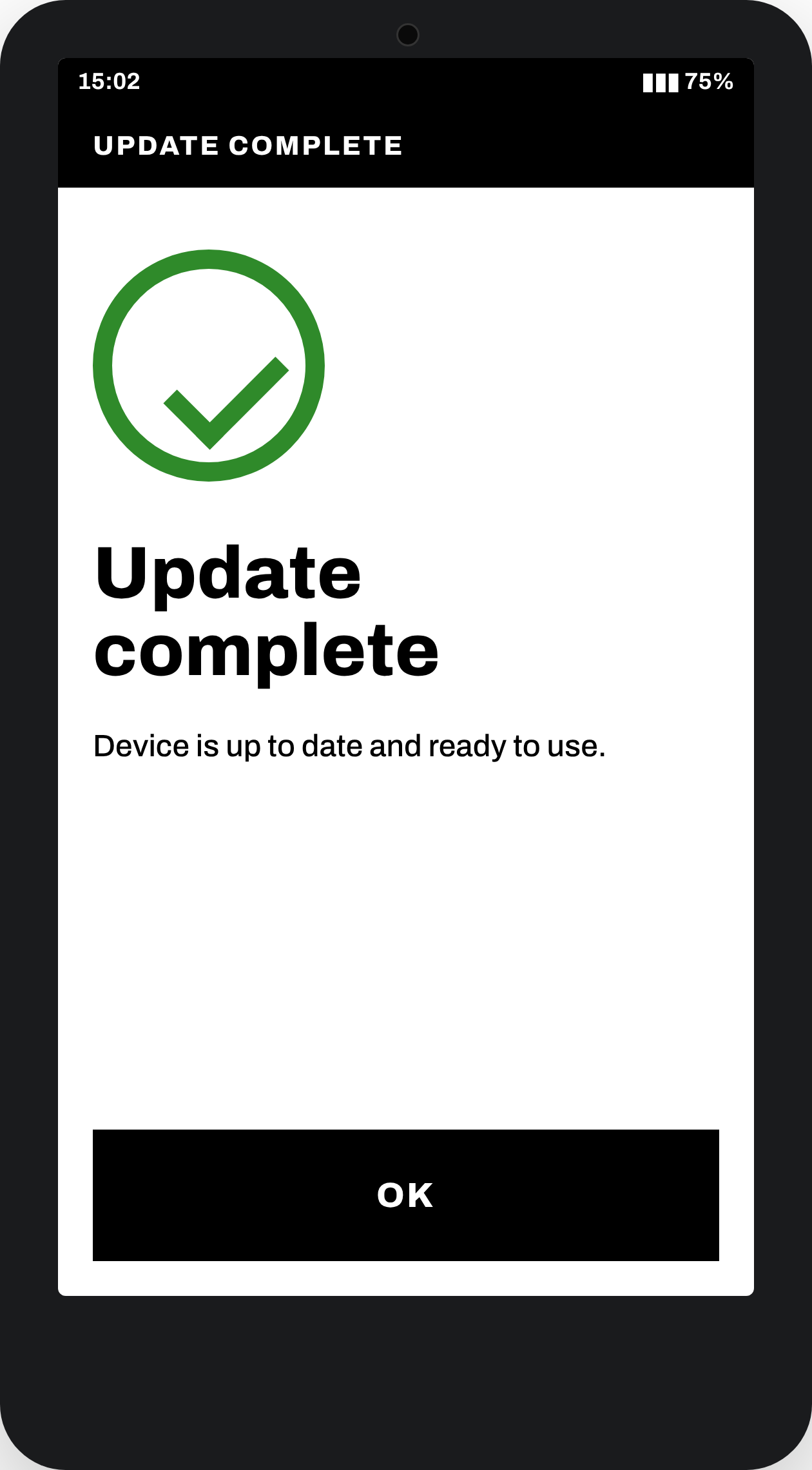
Progress is shown on the device during the install. Afterwards the new version is verified and the result is saved on the device for your MDM to collect.
Features
The prompt stays in front of every app, including kiosk mode, and comes back after a restart until the user has made a choice.
Updates that would erase apps and data are blocked unless the administrator explicitly allows them.
Install the app with your MDM and it is ready. No adb, no staging barcode, no extra profile.
Settings use Android managed configuration, which any MDM that installs enterprise apps can set.
Change a value in the MDM console and the running app picks it up at once. Changes received during a prompt or an install apply when that round ends.
The app can download the OS package itself. An interrupted download continues where it stopped.
No prompts inside a configured quiet window. No prompt and no install below the configured battery level. A device that was off picks up where it left off.
A log on the device, a result after every update, and a support screen with status, OS version and app version.
For administrators
Everything is set in your MDM console, with a short explanation next to each setting. Change a value and the devices follow.
Requirements. Zebra Android 11 or later with A/B partitions. An MDM that can install enterprise apps.
Pricing
One price per device per month, billed annually. The more devices, the lower the price. All prices in USD, excluding VAT. The licence key is applied through managed configuration and validated on the device, so there is no server and nothing phones home.
All devices are charged at the tier rate. One-year licence, billed annually. Reseller terms are available for Zebra and MDM partners.
FAQ
All Zebra Android devices running Android 11 or newer.
Any MDM that can install enterprise apps. The OS package arrives with your MDM's file sync, or the app downloads it from a link you provide.
Install the app with your MDM, change the settings you want, and deliver the OS package. There is no setup on each device and no server to run.
No. The user can postpone a set number of times. After that a countdown starts and the update installs by itself. The prompt cannot be closed, and it comes back after a restart.
Nothing is lost. The app continues when the device is switched on again, and once the OS package is on the device no network connection is needed to install it.
Some Zebra updates, such as downgrades, erase apps and data. NM OS Manager blocks those unless you explicitly allow them. Some Zebra devices and OS versions need special attention, so use this setting carefully and always check the Zebra documentation.
The app verifies the new version after the restart and saves the result on the device, where your MDM can collect it. The support screen on the device shows the current status.
No server. Internet is only needed if the app downloads the OS package itself. The licence key is checked on the device.
Tell us how many devices you have, which Zebra models and which MDM you use. That helps us give you a precise answer.
Prefer e-mail? contact@osmanager.net
We have received your message and will reply by e-mail.